
3.2 KiB
Configure-custom-SMTP-for-UCMDB_688983358
Introduction
Step 1. Get AWS SMTP server host
The smtp server host is dedicated for each region of AWS. Please refer to SMTP Endpoints of Amazon Simple Email Service endpoints and quotas for details.
Step 2. Create email credentials for the UCMDB - Optional
This step to create a custom sender SES identity is OPTIONAL. This is only needed if the customer requires a "custom sender" email address.
You can use the Farm AWS SES identity details instead. This is actually the preferred method.
Note: for the below steps you need to login to AWS Console using the ESM user, or ask someone from PSEC (MFI-Product Security Operations <MFI-ProductSecOps@ opentext.com >) to create this IAM user.
- Open the “Amazon Simple Email Service” on the AWS console
- Go to select the “SMTP Settings” on left pane, click “Create SMTP credentials” in the “Simple Mail Transfer Protocol (SMTP) settings”
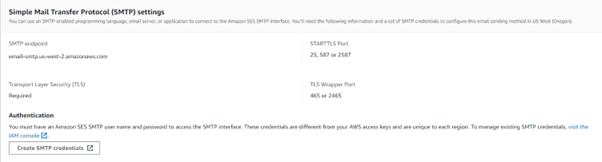
- Give the new IAM user name as “ses-smtp-user.{farm alias}-{tenantId}”, for example:

- Click Create.
- Due to a limitation in UCMDB,the SMTP User password doesn't support special character like(/ * -),so you have to repeat the IAM user creation until you got a Secret Key contains only alphabetic character.
- Save the access key, username, and access secret key into parameter store. The parameter path format:
- /{farm}/tenant/{tenantId}/iam/ses/key: Access key
- /{farm}/tenant/{tenantId}/iam/ses/name: Username
- /{farm}/tenant/{tenantId}/iam/ses/secret: Access Secret Key
Step 3. Verify customer’s email address in AWS SES identity
Refer to Configure custom mail sender, dedicated AWS SES users to verify customer’s email address in AWS SES identity
Step 4. Configure SMTP via JMX
-
Log into JMX Console and for setSettingValue

-
Search JMX method listResourceTypes, input tenantid and click invoke.
Click Settings_STATE_CUSTOMER_SETTING
Click **email.send.from
Manually input the email sender in if the value is not correct,click 'save resource'.
You may see a value like: sma_noreply@microfocus.com with hex code for the "@" character. Change it to the visible "@" character on your keyboard.
**
-
Search JMX method showSettingsByCategory, input customerID, Mail Settings as category and click invoke. Review all the values you input.

-
example


Step 5. Test to send report
- log into CMS UI https://cms.-smax.saas.microfocus.com/ucmdb-browser/ui/reports?customerID=123456789
- Go to


