
9.3 KiB
Integrate-with-Power-BI-to-create-FinOps-reports_686065345
Introduction
This topic describes the tasks that the SaaS Operations team should undertake to assist customers in generating FinOps reports using Power BI.
To create reports using Power BI, customers will need the following services:
- Power BI Gateway: A software that you can install and use in conjunction with Power BI Service. Power BI Gateway enables Power BI Service to connect to the underlying data that it can't access directly. Power BI Service, connected to Vertica through Power BI Gateway, gives access to data in Vertica and publishes them to Power BI Service.
- Power BI Service: A software as a service product for viewing and sharing data reports that customers build using Power BI Desktop.
- Power BI Desktop: A Windows desktop application for exploring data and building reports. Customers can publish Power BI Desktop reports to the web and share them with others via Power BI Service.
The SaaS Operations team needs to complete the following steps related to Power BI Gateway:
- Install the Microsoft Power BI Gateway on a Windows instance in the SaaS environment under the same VPC as Vertica Database Server
- Create a read-only user in Vertica
- Configure a resource pool for each tenant
Set up and configure Power BI Gateway
This section describes the steps to install and configure Power BI Gateway.
Create a VM and install Power BI Gateway
- Create a Windows virtual machine in the AWS environment by following the instructions in Launch an instance. Note that:
-
- The machine must be in the same VPC as the Vertica server, but in a private subnet that's different from the Vertica server. Don't expose this machine to a public network. - The image must be 64-bit version of Windows Server 2022 Base. - Recommended instance type: t2.xlarge - When configuring Security Group, make sure you use these inbound ports: TCP 443, 5671, 5672, and from 9350 through 9354. All outbound traffic is allowed. For the source IP addresses for Power BI Service in your firewall, go to Public Cloud, download the JSON file, and then search for Power BI.
- Download the standard mode of the on-premises data gateway from the Power BI downloads website.
- Run the downloaded file as the administrator and follow the prompts for installation.
- Once installation is complete, start a sharing session with the customer and ask the customer to enter the email address/account details to register the gateway. This account will be used as the Power BI Gateway administrator.
Microsoft Login will prompt for additional authentication. Federation to customer corporate portal is also expected. The browser might ask you to add a website to the trusted sites zone. To reduce such prompts, you can choose to do so by clicking Add.
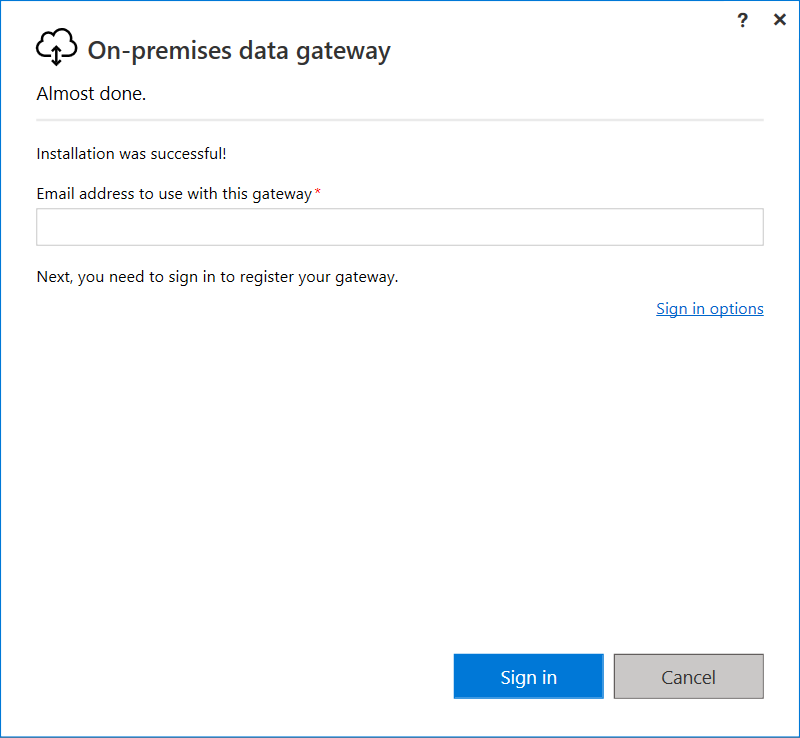
- Register a new gateway on the computer.
- Specify the gateway name and recovery key, and then click Configure. Also, note that you can change the region that connects the gateway to cloud services.
- Once registered, you will get a message indicating that the installation is successful.


Harden the communication between Vertica and Power BI Gateway
- Log in to the bastion node.
- Run the following command to retrieve the certificate:
helm get values opsb-nopsb | sed-n'/vertica-ca.crt:/,/-----END CERTIFICATE-----/p'|grep-vvertica-ca``.crt: | sed's/^ //g'> /tmp/vertica_ca.crt - Move the certificate from the tmp directory in the bastion node to the Power BI Gateway server.
- Log in to the Power BI Gateway server.
- Go to Windows Start and search for mmc to execute it.
- Go to File > Add/Remove Snap-in.
- Select Certificates and click Add.
- Select Computer account and click Next.
- Click Finish.
- Use Find certificate to make sure the saas.ca@xxx.com certificate is displayed
Create a read-only user in Vertica
Tenant-specific DB users should have access to only tenant-specific schemas. Permissions given to tenant-specific DB users should follow the principle of least privilege. To see the views and create the dataflows in Power BI Service, you'll need to create a read-only user in Vertica. To do this, run the following script in the Vertica database as the Vertica dbadmin (check the itom-cgro_vertica_db_username field in t he database-configmap. See the How to get the fields section at the bottom of this page):
# first revoke and restrict public access
SELECT RESTRICT_SYSTEM_TABLES_ACCESS();
# Filter all system tables so that non DB admin users can only view details about themselves.
ALTER DATABASE DEFAULT SET DoUserSpecificFilteringInSysTables = 1;
# grant select on all_tables as it is required to get list of tables using metadata API in driver. This allows user to see all the table names even if the user has no access to it.
GRANT SELECT ON v_catalog.all_tables TO PUBLIC``;
# then for each tenant need to create read - only user
CREATE USER QUERY_DB_USER_<tenant> IDENTIFIED BY < password >;
GRANT USAGE ON SCHEMA awsc<tenant> TO QUERY_DB_USER_<tenant>;
GRANT USAGE ON SCHEMA azurec<tenant> TO QUERY_DB_USER_<tenant>;
# set search path and provide grant permissions for schema /tables
ALTER USER QUERY_DB_USER_<tenant> SEARCH_PATH awsc<tenant>, azurec<tenant>;
GRANT SELECT ON awsc<tenant>.<views to expose> TO QUERY_DB_USER_<tenant>;
GRANT SELECT ON azurec<tenant>.<views to expose> TO QUERY_DB_USER_<tenant>;
- tenant: The tenant ID.
- password: The password of the read-only user.
- views to expose: The OOTB views that the read-only user can have access to. For example:
GRANT SELECT on awsc464797303.CLOUD_AWS_CUR_BILLING_BD_1D,
awsc464797303.CLOUD_AWS_CUR_BILLING_BD_1M,
awsc464797303.CLOUD_AWS_CUR_BILLING_BD_1Q,
awsc464797303.CLOUD_AWS_CUR_BILLING_BD_1Y,
awsc464797303.CLOUD_AWS_CUR_BILLING_RAW,
awsc464797303.CLOUD_AWS_CUR_BILLING_UD_1D,
awsc464797303.CLOUD_AWS_CUR_BILLING_UD_1M,
awsc464797303.CLOUD_AWS_CUR_BILLING_UD_1Q,
awsc464797303.CLOUD_AWS_CUR_BILLING_UD_1Y,
awsc464797303.CLOUD_AWS_CUR_USAGE_METRICS_1M TO QUERY_DB_USER_464797303;
GRANT SELECT ON azurec464797303.CLOUD_AZURE_CM_BILLING_1D,
azurec464797303.CLOUD_AZURE_CM_BILLING_1M,
azurec464797303.CLOUD_AZURE_CM_BILLING_1Q,
azurec464797303.CLOUD_AZURE_CM_BILLING_1Y,
azurec464797303.CLOUD_AZURE_CM_BILLING_RAW,
azurec464797303.CLOUD_AZURE_CM_USAGE_METRICS_1M TO QUERY_DB_USER_464797303;
Configure the resource pool
Tenant-specific applications should run queries within tenant-specific resource pools. For each tenant, you'll need to configure one resource pool. To do this, run the following script in the Vertica database as the Vertica admin:
# Not reserving memory but capping the memory use. maxsize= 20% in BYOBI use case
CREATE RESOURCE POOL QUERY_SERVICE_RESOURCE_POOL_<tenant> MAXMEMORYSIZE '<maxsize>'``;
GRANT USAGE ON RESOURCE POOL QUERY_SERVICE_RESOURCE_POOL_<tenant> TO QUERY_DB_USER_<tenant>;
ALTER USER QUERY_DB_USER_<tenant> RESOURCE POOL QUERY_SERVICE_RESOURCE_POOL_<tenant>;
ALTER USER QUERY_DB_USER_<tenant> MAXCONNECTIONS 20;
Use Power BI Service to create Dataflows
When the customer is using Power BI Service to create dataflows, the Cloud Ops team needs to provide the customer with the following Vertica connection settings and credentials:

| Field | Description | Provided by Cloud Ops |
|---|---|---|
| Server | The Vertica host name. | Yes |
| Database | The Vertica database. | Yes |
| Connection | Select Create new connection to create and establish a new connection to the data source or select an existing connection if you've connected before. | No |
| Connection name | Enter a descriptive name for the new connection. | No |
| Data gateway | Select the Power BI gateway installed for creating FinOps reports. | No |
| Authentication kind | Basic | No |
| Username | The name of the read-only user. | Yes |
| Password | The password of the read-only user | Yes |
How to get the fields
You can find the vertica database information in the database-configmap. To do this, run the following command to find required info. For example, db host key (itom-cgro_vertica_db_host) and db name key (itom_cgro_vertica_db_name).
kubectl edit configmap database-configmap -n {hcmx-namespace}