11 KiB
ESM-Tenant-Provisioning-Automation_686079418
Introduction
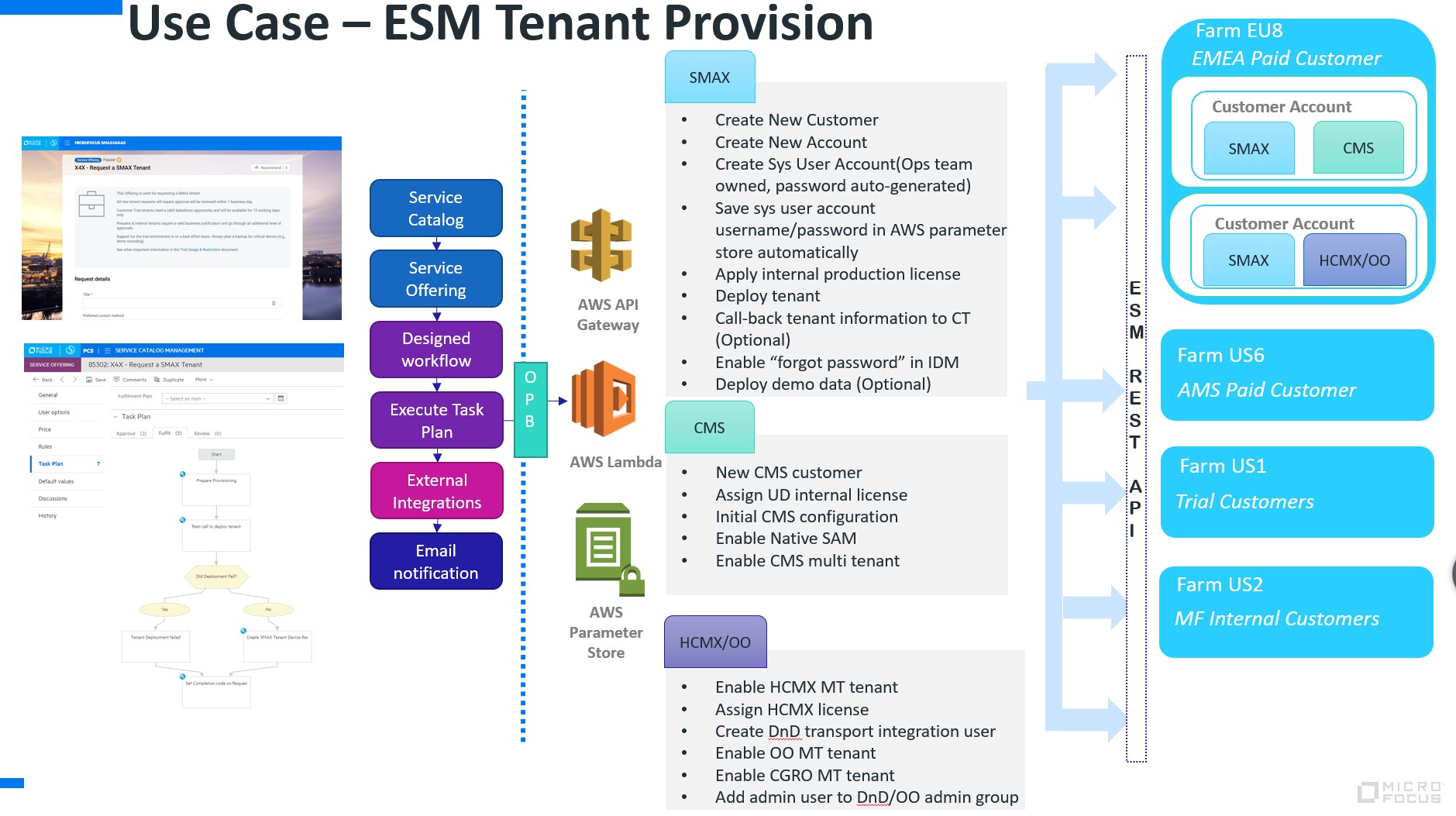
This guide introduces how to leverage the SMAX4SMAX tenant to deploy an ESM tenant, including all ESM capabilities (SMAX/HCMX/CMS/OO/SAM/ITOM Aviator).
Here is the diagram to describe the X4X(SMAX4SMAX) tenant provision automation architecture:
ESM Tenant Provision Strategy for SaaS Customers
Based on the discussion with PM, the following is the strategy for ESM tenant provisioning for different SaaS customer types:
- CMS + Native SACM should be deployed as default for all new customers in SaaS, (SMAX Premium, HCMX, AMX) and only SMAX Express will be limited unless a customer purchases discovery licenses or asks after deployment
- Important If this is an existing SMAX customer who is adding on ucmdb, NSACM, UD or SAM: an onboarding checklist and pre-check must be done BEFORE the automated deployment of NSACM. Please check with CSM, Ops leaders and SaaS leaders before deployments to coordinate the NSACM onboarding process for this customer. Failure to follow can result in impacts to the customer.
- HCMX needs UCMDB by default after we introduce IaC Gateway, so we can deploy CMS for HCMX orders
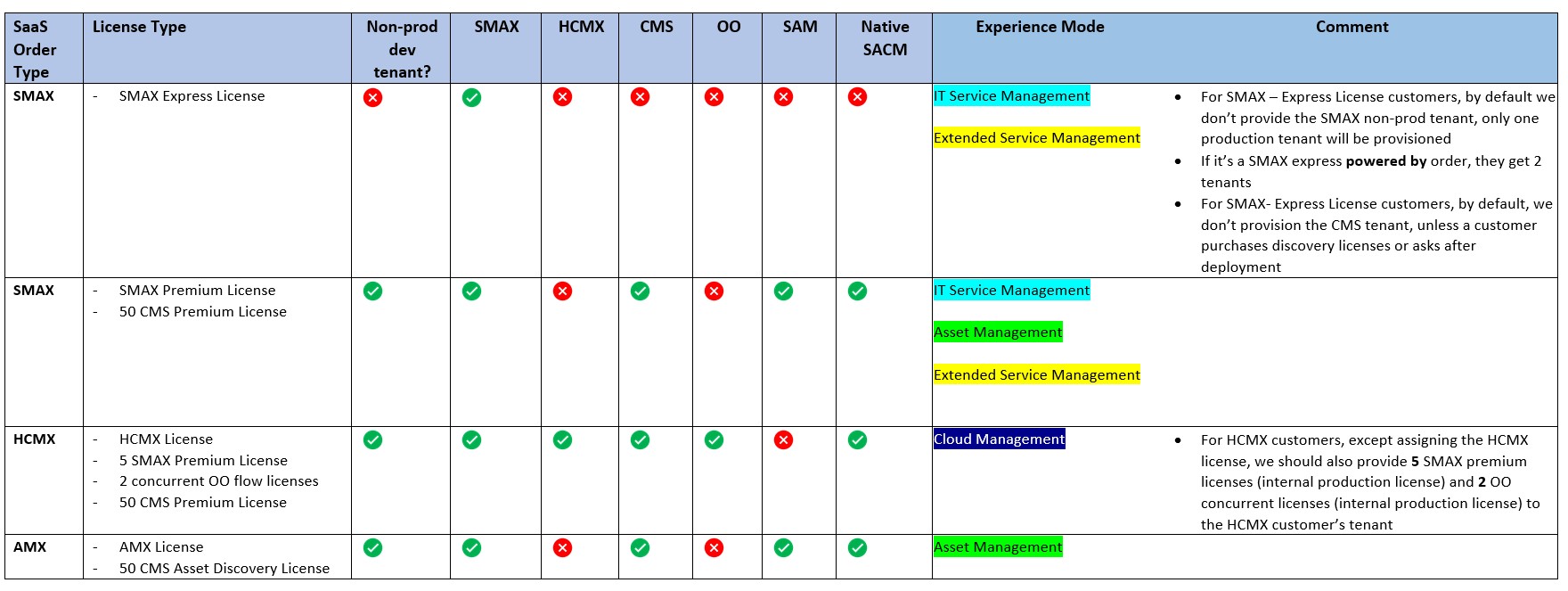
- During X4X tenant provision automation is just using the SMAX internal production license, once the SaaS Ops team receives the official licenses be sure to follow the below table:
- Changing the license type according to the SaaS order
- Revoking internal production licenses
- Manually update the experience mode inside the tenant
- Changing the license type according to the SaaS order
- Except for tenant provision please double-check the number of assigned license units to ensure it is aligned with customer-purchased license units
- Please ensure to configure the correct experience mode in the SMAX tenant according to the license type
- If the customer didn’t specify the # of concurrent licenses or named license, let’s by default allocate license units as the concurrent user license
Login to the SMAX4SMAX (X4X) tenant
Please login to the SMAX4SMAX tenant by your Micro Focus account:
https://smax4smax.saas.microfocus.com or
https://us2-smax.saas.microfocus.com/saw/ess?TENANTID=202385354
1. Service Offering Instruction
1.1 Create a new ESM SaaS Customer
Before the tenant provisioning, we may create a Customer first. One Customer can correspond to multiple tenants, and one tenant can only correspond to one Customer. If the Customer corresponding to the tenant you want to create already exists, you can skip this step.
After logging into your X4X tenant, select the " Create New ESM SaaS Customer " service on the service portal to create a new Customer. Enter the Customer name and select the farm where the Customer will be deployed.

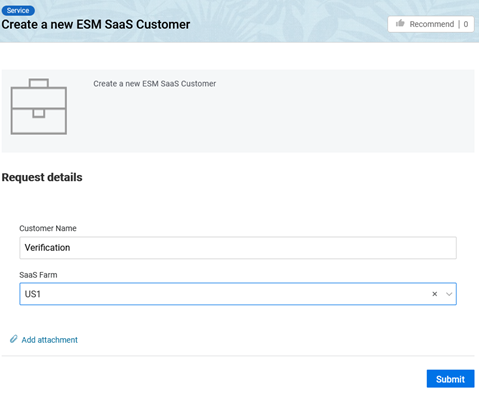
Once you submit the form, it will create a new request.
Enter the agent interface to find the request, and a task plan will be run to call BO's API and create a " Customer " in BO.
At the same time, a new record for the Vendor with company type "Customer" will be created in SMAX.
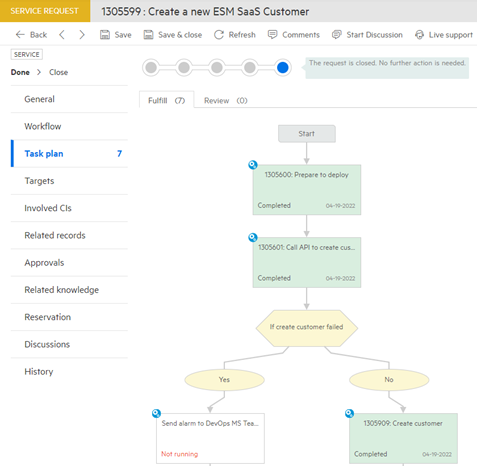
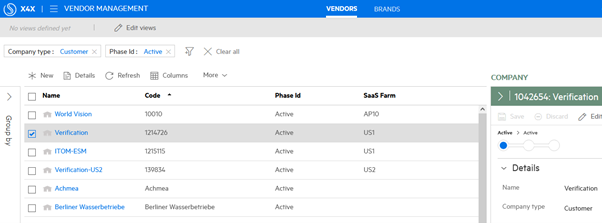
1.2 Provision a new ESM tenant (optional CMS, OO, DND, Aviator, FinOps)
Now we could apply the service offering “ Provision a new ESM tenant (optional CMS, OO, DND, Aviator, FinOps) ” to create a new ESM tenant.

Request Form Description
SaaS Farm
This is the farm on which the tenant will be located.
This list will show the customer related to the "SaaS Farm". Please create a new one with step 1.1 if yours does not exist.
Tenant Name
Enter the tenant’s name.
Tenant Type
there are two choices for the tenant type. The “Production” tenant is for the paid customer and will be assigned an internal production license. The "Dev" tenant will be assigned an internal non-production license.
Source Request
If pre-sales or PM needs an ESM tenant for a demo or POC, they can only request it by raising a trial request in X4X. When the Ops team receives the trial request, they will start provisioning the tenant according to the trial request. As a source request, entering it in this field will help us track the status of the entire trial tenant workflow.
License Expiration Time
If this is a trial or temporary tenant, provide the tenant expiration date. For paying tenants, please skip.
Are you the Primary contact for this SMAX Tenant?
If so, the workflow sets the current requester as the tenant owner and creates an administrator account for the requester during tenant configuration. Otherwise, you must provide the Customer First Name, Customer Last Name, and Customer Contact Email from later steps to create an administrator account as the primary contact.
Source Requestor
If there is a source request, enter the requester of the source request, otherwise, enter the current requester.
SMAX Demo Data
Check it will deploy the SMAX demo data automatically after the ESM tenant deployment.
SaaS Product
Select the SaaS product type you are going to provision.
CMS Required? (with SAM enabled)
Check this if you need the CMS, the workflow will also enable the Native SACM and SAM.
OO Required?
Check this if the OO is going to be deployed.
DND Required?
Check this if the DND is going to be deployed.
FinOps Required?
Check this if the CGRO is going to be deployed.
ITOM Aviator Required?
Check this if the ITOM Aviator is needed. Currently, it is only available on the EU3.
Workflow Description
After the form is submitted, a new request will be generated, and the request's task plan will start executing and call BO's API to create and deploy a new tenant.
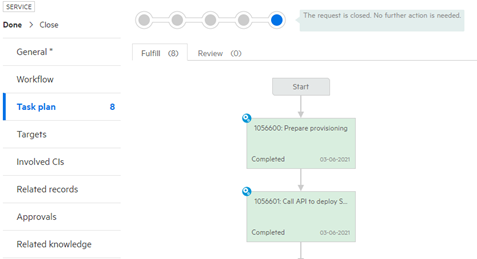
1.3 Provision add-on capabilities to an existing tenant
You can now use "Provision add-on capabilities to an existing tenant" to enable capabilities on existing tenants you own.

Please refer to 1.2 for all form instructions.
Email Notification
Once the tenant deployment is successful, the primary contact will receive a notification email indicating that SMAX is ready.

ESM Tenant System Account Owned by SaaS Ops
During the tenant creation, some system user accounts owned by the OPS team will be created.
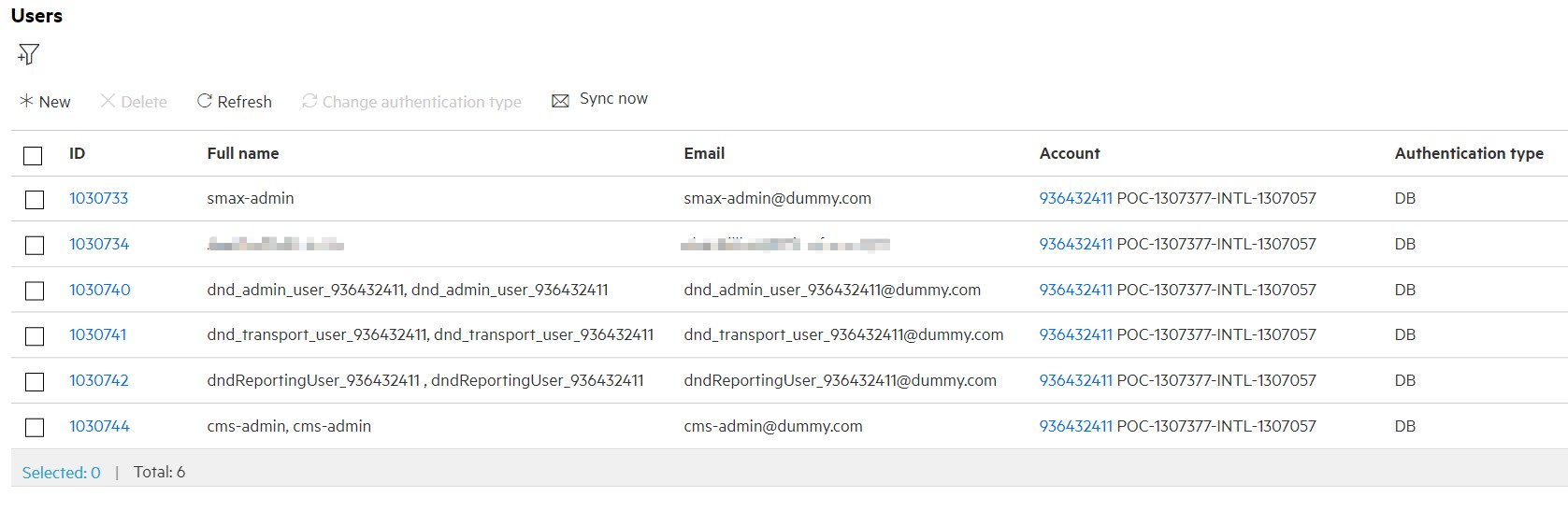
The username and password will be stored in the AWS parameter store. To get them, we need to install AWS CLI first.
The installation media: https://docs.aws.amazon.com/cli/latest/userguide/install-cliv2-windows.html
The installation guide: https://docs.aws.amazon.com/cli/latest/userguide/install-cliv2-windows.html
We can execute the command to get the username and password:
For SMAX:
aws ssm get-parameter –name /{farm}/tenant/{tenantId}/smax/admin/name
aws ssm get-parameter –name /{farm}/tenant/{tenantId}/smax/admin/password –with-decryption
For CMS:
aws ssm get-parameter –name /{farm}/tenant/{tenantId}/cms/admin/name
aws ssm get-parameter –name /{farm}/tenant/{tenantId}/cms/admin/password –with-decryption
For DND:
aws ssm get-parameter –name /{farm}/tenant/{tenantId}/dnd/admin/name
aws ssm get-parameter –name /{farm}/tenant/{tenantId}/dnd/admin/password –with-decryption
aws ssm get-parameter –name /{farm}/tenant/{tenantId}/dnd/integration/name
aws ssm get-parameter –name /{farm}/tenant/{tenantId}/dnd/integration/password –with-decryption
Please replace the {farm} as the farm on which the tenant is located.
2. Tenant Configuration in BO
2.1. Forget password
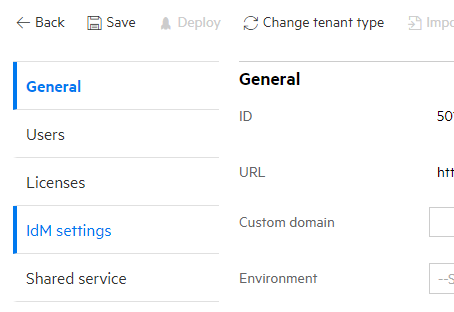
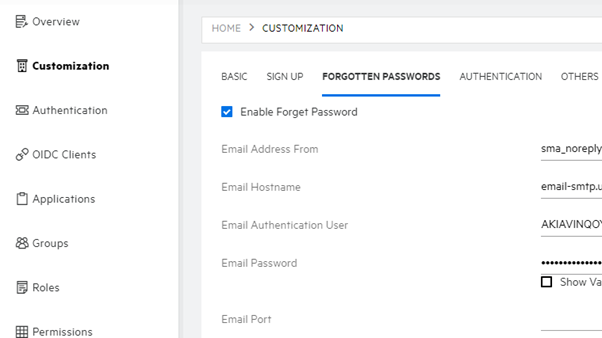
The SMAX tenant is turned on the forget password feature by default. We also could customize the configuration in BO. For example, it’s https://us1-smax.saas.microfocus.com/bo for the US1 farm. We could log on to BO with suite-admin credentials and select the tenant needs to change. And go to the “IdM settings”.
Select “Customization” and update the settings in “FORGOTTEN PASSWORDS”.
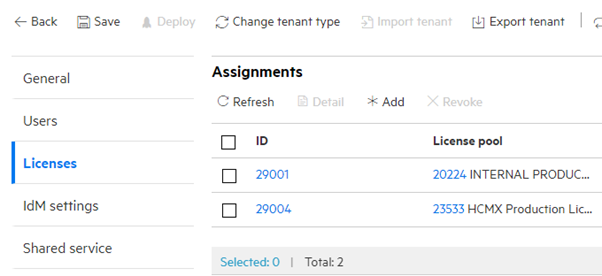
2.2. Internal Production License
The tenant has installed an internal production license by default. We could check it in the “Licenses” tab from BO for SMAX and HCMX.
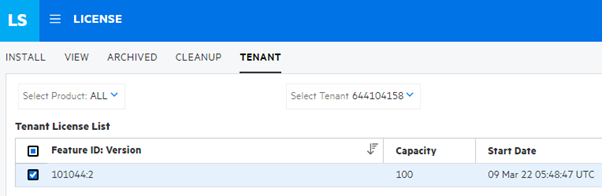
For OO, we could check it in the “Autopass” UI like https://oo.us1-smax.saas.microfocus.com/autopass ” for the US1 farm with suite-admin credentials.
2.3. CMS/HCMX/OO Admin Permission Assignment
The tenant will create a default admin account with admin permission. If we need to add more accounts as admin, go to the “IDM settings” of BO and the “Groups” tab.
We could find a group name the same as the tenant ID, which is the CMS admin group.
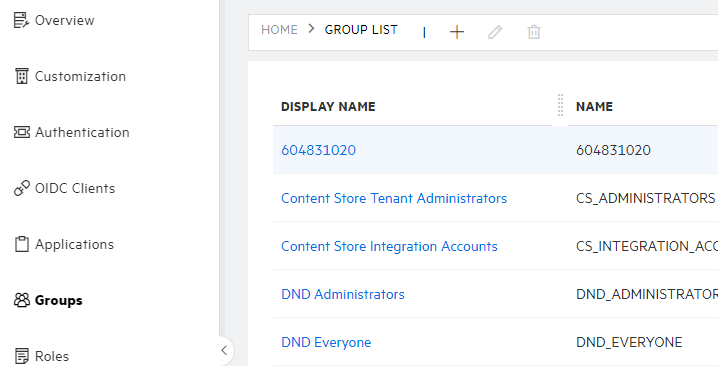
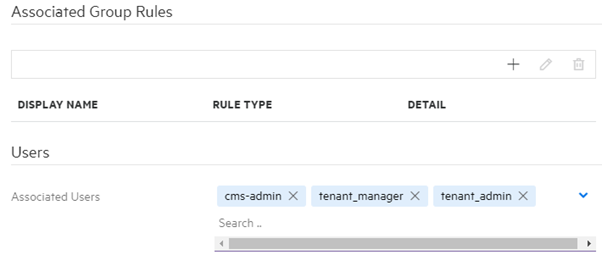
We could add associate people to the “Associated Users” and the people have been grant the admin role for CMS.
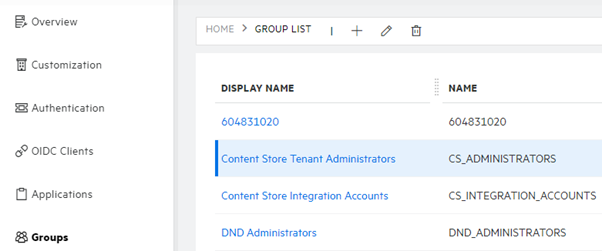
For the HCMX Content Store, we could add users to “Content Store Tenant Administrators” to grant the content store admin role.
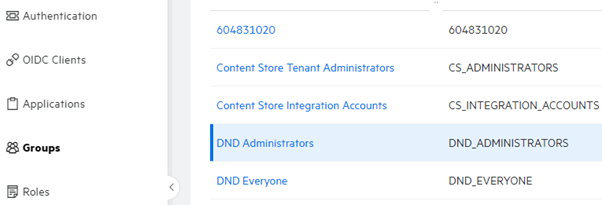
For DND, we could add users to “DND Administrators” to grant DND admin role.
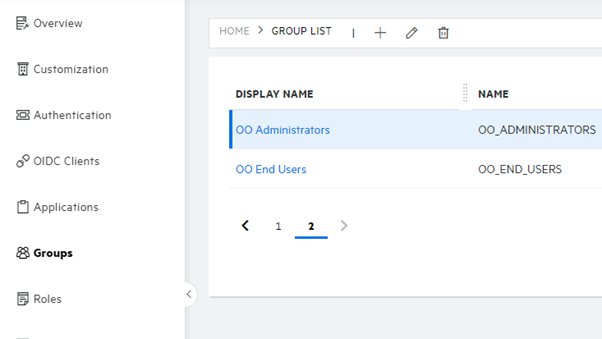
For OO, we could add users to “OO Administrators” to grant OO admin role.